
DouWan on iPhone: Mirror Your Screen Smoothly for Streaming
Download DouWan App for Windows PC
Install NowWhen you need a fast way to show your phone screen on a bigger display, DouWan on iOS can be a practical option for creators, gamers, teachers, and remote teams. This guide walks through setup, best-use scenarios, and common fixes so you can mirror with fewer interruptions and better quality.
What DouWan Does on iPhone
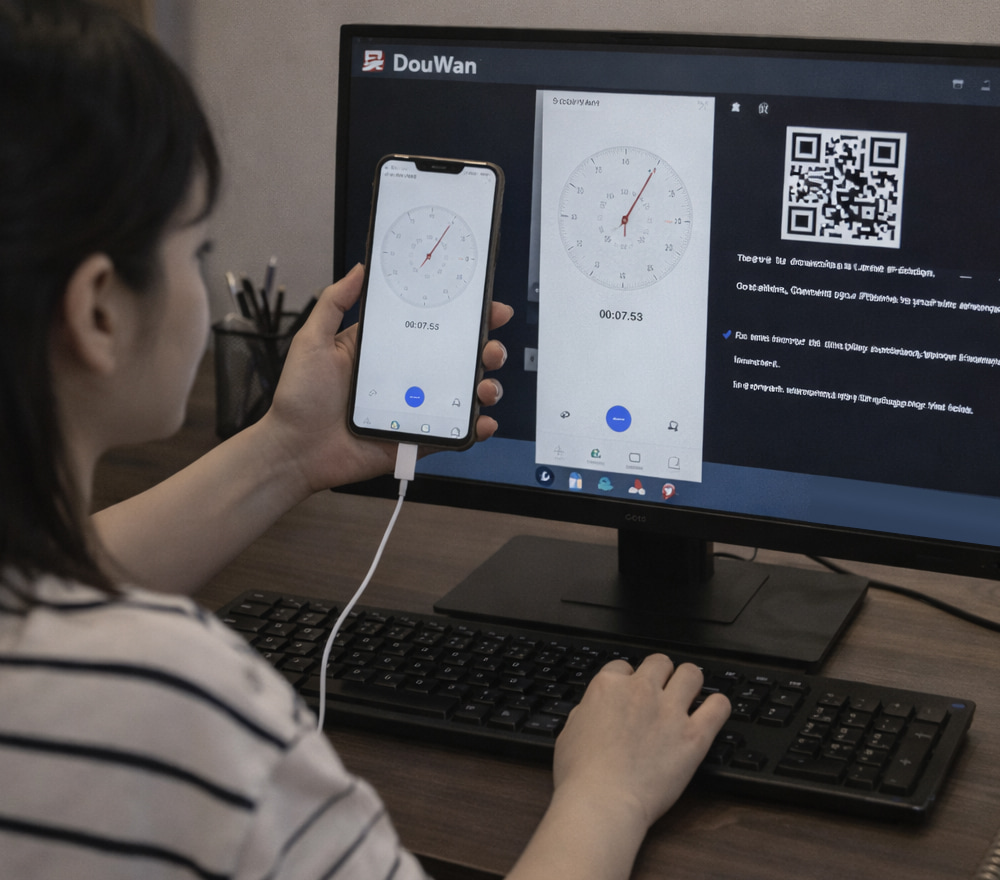
At its core, DouWan helps you share your iPhone screen to other devices so others can watch what you’re doing in real time, whether that’s a presentation, a gameplay session, or an app walkthrough.
- Show tutorials and product demos on a larger screen
- Stream mobile gameplay to a desktop workflow
- Share photos, videos, and webpages with a group
- Mirror for teaching, onboarding, and troubleshooting
Tip: For the cleanest results, start by closing background apps and enabling Do Not Disturb before mirroring.
Install DouWan App and First Launch
To begin, you can download DouWan for iPhone from our fan website and then follow the on-screen prompts to grant the required permissions.
- Install the app and open it on your iPhone.
- Make sure your iPhone and the receiving device are ready (TV, laptop, desktop browser, or another compatible display).
- Follow the app’s pairing or connection flow, then confirm the screen broadcast when iOS prompts you.
If you are prompted to use Screen Broadcast, keep the Control Center handy so you can quickly stop or restart mirroring if the connection drops.
Connection Options That Usually Work Best
The iOS DouWan app is commonly used in two patterns: quick sharing through a browser-based receiver or low-latency mirroring for more interactive use cases.
- For meetings and demos: Choose the simplest receiver method available, then focus on stable Wi-Fi.
- For gaming and fast motion: Prioritize the lowest-latency mode and reduce background network usage.
- For classrooms or groups: Test audio and orientation changes (portrait/landscape) before you start.
Video Quality Checklist
Small tweaks can noticeably improve clarity, reduce stutter, and keep your audio in sync.
- Move closer to your router or use a less congested Wi-Fi band if your network supports it.
- Lower the receiver resolution if you see frame drops during fast scenes.
- Disable VPNs temporarily if you notice pairing issues.
- Keep your iPhone plugged in for longer sessions to avoid aggressive power saving.
Pricing and Free Expectations
Many users look for DouWan for iOS for free, so it helps to check the App Store listing for the current tier structure and what features are included without upgrading. If you plan to stream often, review whether advanced options (like higher quality or extra tools) are gated behind subscriptions, then decide based on how frequently you mirror.
Quick Troubleshooting Guide
If the DouWan app for iOS won’t connect, start by confirming both devices are on the same network and then restart the receiver page or device before trying again.
- No video appears: Re-open the receiver and re-confirm the iOS broadcast prompt.
- Lag feels high: Reduce resolution, pause downloads, and move closer to the router.
- Audio missing: Check iPhone mute switch, receiver volume, and whether the receiver supports audio input.
- Session disconnects: Keep the phone awake and disable Low Power Mode for the session.
Compatibility Snapshot
| Item | What to check | Why it matters |
|---|---|---|
| iOS version | Your device meets the minimum supported iOS requirement | Prevents crashes and missing broadcast features |
| Network | Same Wi-Fi/LAN and stable signal | Avoids pairing failures and stutter |
| Receiver device | Modern browser or compatible display | Improves playback, audio, and controls |
Best Use Cases (with Practical Ideas)
- Game capture workflow: Mirror to a computer, then use your preferred recording or streaming setup.
- Client demos: Show a prototype app live without emailing test builds.
- Family sharing: Put photos and videos on a larger screen without passing the phone around.
- Support sessions: Share your screen to walk someone through settings or steps clearly.
Privacy and Safety Tips
Before you mirror, consider what notifications or personal content might appear.
- Turn on Focus mode to reduce pop-ups during sessions.
- Close banking, password, and private messaging apps.
- Use a separate “demo” home screen page if you present publicly.
Fast Start Checklist
To get DouWan app for iPhone running smoothly, do one short test run first, then start the real session only after you confirm audio, orientation, and stability.
- Open the receiver on your target device
- Start Screen Broadcast on the iPhone
- Rotate once to confirm portrait/landscape behavior
- Play a short clip to confirm audio sync