
Install DouWan Guide: Set Up Smooth Phone-to-PC Screen Mirroring
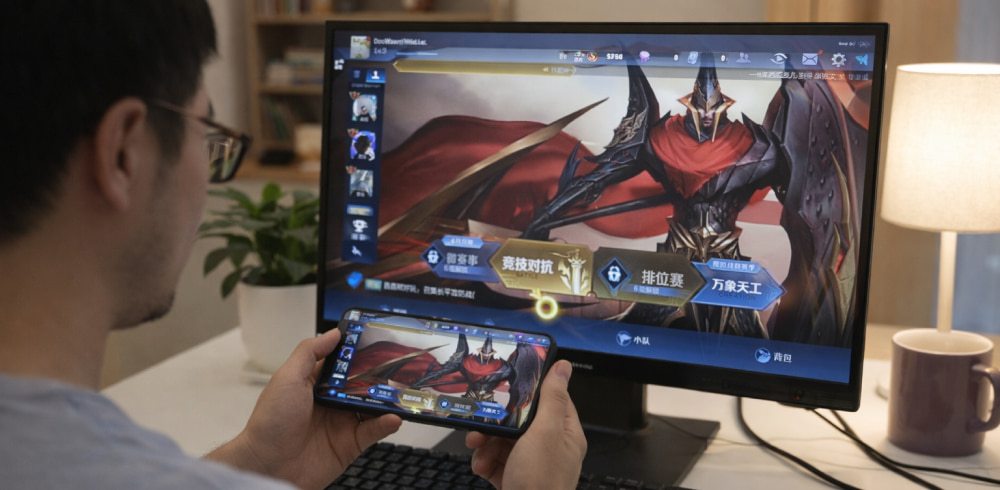
Download DouWan App for Windows PC
Install NowDouWan is built for people who want a reliable way to mirror a phone screen to a larger display for demos, gaming, streaming, or recording, and the setup is usually quick once you know the right order of steps. This guide walks through safe, official installation paths and the most common fixes when something doesn’t connect on the first try.
Before You Start
- Check your goal: wired mirroring (lowest latency) or wireless mirroring (more flexibility).
- Prepare hardware: a quality USB cable (data-capable), and optionally a powered USB hub if your device needs more stable power.
- Update basics: install the latest system updates on Windows/macOS and update your phone OS to avoid driver and permission issues.
If you’re unsure which route to take, start with a wired connection first and switch to wireless later once everything works.
Step 1: Download
For the safest start, DouWan install should be done using the vendor site or official app stores rather than random mirrors.
| Platform | Recommended source | Why it matters |
|---|---|---|
| Windows / macOS | Our fan website | Reduces risk of modified installers and missing components |
| Android | Google Play | Simpler updates and permissions management |
| iPhone / iPad | Apple App Store | Trusted signing and predictable privacy prompts |
Step 2: Install DouWan on Computer
- Download the desktop package that matches your system (Windows or macOS).
- Run the setup and approve any security prompts for device access.
- Launch the app once to confirm it opens and can detect connected devices.
When you run the setup wizard, the install DouWan flow may request permission for networking or local device discovery, and allowing it helps wireless features work correctly.
Tip: If your firewall is strict, temporarily allowing the app through can resolve “device not found” issues during first-time pairing.
Step 3: Install the DouWan App
On your phone, install DouWan app directly from the official store page so updates and permissions are handled cleanly.
- Android: install from Google Play, then open it once so it can request USB/network permissions.
- iOS/iPadOS: install from the App Store, then allow local network access if prompted.
Step 4: Connect via USB (Recommended First)
- Connect your phone to the PC using a data-capable USB cable.
- Unlock the phone and accept any “Trust this computer” or USB permission prompt.
- Choose the USB mirroring option inside the app and start casting.
If you’re following a video workflow, DouWan app download and install is only half the job, because the first USB connection usually triggers important trust and access prompts on the phone.
Optional: Connect Wirelessly
- Make sure the phone and PC are on the same local network.
- Disable VPNs temporarily if device discovery fails.
- If your desktop is on Ethernet and your phone is on Wi-Fi, confirm both are on the same LAN segment.
Common Issues and Fixes
Device not detected over USB
- Try a different cable and a different USB port.
- Use a powered hub if the phone disconnects randomly.
- Restart both devices and reconnect with the phone unlocked.
Wireless pairing fails
- Temporarily disable firewall rules that block local discovery.
- Restart your router or switch to a simpler network (home Wi-Fi) for initial setup.
- Use the phone’s hotspot as a quick test to confirm discovery works.
Overheating during long sessions
If your device gets warm, DouWan installer settings related to fast charging may need to be turned off to reduce heat during extended mirroring.
How to Use It Safely for Free
Some users look for a DouWan for free install, and the safest approach is to use official versions that offer free tiers, trials, or limited features rather than unofficial downloads.
- Prefer official stores and the official site for authenticity.
- Avoid modified builds that can add ads, trackers, or instability.
- Keep automatic updates enabled when possible.
If you want to install DouWan for free, stick to the legitimate free options provided in the app or store listing and avoid “cracked” packages that can compromise your device.
Quick Checklist for a Clean First Run
- Desktop app opens without errors
- Phone app launched at least once
- USB trust prompt accepted (for wired mode)
- Local network permission accepted (for wireless mode)
- Firewall rules allow device discovery if needed
With these steps, you should have a stable mirroring setup that’s ready for presentations, recording, or streaming without constant reconnects.